


This guide describes how to securely connect an on-premises Active Directory (AD) or LDAP directory to Bare.ID. The integration is split into two logically separate phases:
- Network connection – establishing a secure connection between your on-premises environment and Bare.ID, typically over a managed VPN tunnel.
- Directory integration – configuring the actual LDAP/Active Directory integration (service account, search bases, LDAPS).
The second phase should only begin once the network connection has been established and verified as stable.
Overall architecture
In the target state, the VPN tunnel terminates on the Bare.ID side directly inside the Kubernetes pods of your Bare.ID instance. Over this tunnel, the Bare.ID instance sends LDAP/LDAPS requests to your Active Directory, which you expose through an endpoint you operate – typically a dedicated gateway VM. This way, your Active Directory does not need to be directly reachable from the internet.
A large part of the responsibility for stable operation lies with the correct network and firewall configuration in your environment.
The VPN connection at a glance
The network connection is established over a managed, WireGuard-based tunnel provided by the partner XplicitTrust. This is a point-to-point (peer-to-peer) connection: a direct, end-to-end encrypted tunnel is built between your Bare.ID instance and the endpoint you operate. On the Bare.ID side, the tunnel terminates directly inside the Kubernetes pods of your instance; on your side, the XplicitTrust agent runs the endpoint (usually the gateway VM). Unlike traditional VPNs, the tunnel therefore does not terminate at an intermediary central VPN gateway but extends directly to the participating endpoints.
The approach follows the Zero Trust principle (ZTNA): the XplicitTrust agent initiates the connection exclusively outbound from your network and keeps it alive, so no inbound firewall rules are required. Only the authorized connection to the target system is established, rather than access to an entire network segment.
Recommended architecture (gateway approach)
For production operation we recommend using a dedicated Linux VM as a gateway. This VM acts as the central handover point between the VPN tunnel and your internal network and runs the XplicitTrust agent. Optionally, a reverse proxy for LDAPS termination can be operated on the same instance.
The gateway approach offers several advantages:
- Clear network segmentation, since no installation on domain controllers is required.
- Central consolidation of firewall rules, logging and access controls in one place, which simplifies operation and troubleshooting.
Alternatively, the agent can technically also be installed directly on a domain controller. However, this variant is not recommended, as it mixes roles and places higher demands on hardening and operation.
Which system do you connect to?
Depending on your environment, several options are available as the target for LDAP requests:
- Domain Controller (DC): Direct connection to a DC. Simple to implement, but tightly couples the integration to the availability and load of a production DC.
- Read-Only Domain Controller (RODC): Connection to an RODC or read-only replica. Read and login (bind) operations work via an RODC, and it reduces load on production DCs and the attack surface. Important: an RODC is only suitable for the Read Only mode. Because an RODC processes no write operations, write operations – in particular password resets in Writeable mode – fail via an RODC. If you need password management via Bare.ID, you must target a writable domain controller. (Additional note: an RODC can only authenticate accounts whose passwords are cached according to its Password Replication Policy; otherwise it must be able to reach a writable DC.)
- Reverse proxy: A proxy in front of the directory (e.g. on the gateway VM) terminates LDAPS and provides a stable, hardened endpoint. Well suited to manage certificates and access in one place.
Security and isolation concept
The VPN connection is built with tenant isolation. A separate VPN endpoint is provided for each Bare.ID node; VPN infrastructure is never shared between different customers.
The connection is established exclusively outbound from your network. No inbound connections are required. This model significantly reduces the attack surface and simplifies integration into existing security concepts.
Prerequisites
- A Linux-based virtual machine in a network segment from which the internal target systems are reachable. Alternatively, installation directly on a domain controller or via Docker containers is possible.
- Outbound internet access on the machine.
- Working basic network services (DNS resolution and time synchronization), as these are indirectly relevant for stable operation of the agent.
- An Active Directory and a service account – these are only needed for the directory integration, not for establishing the VPN tunnel.
Network and firewall requirements
For reliable operation of the XplicitTrust agent, outbound firewall rules must be configured correctly.
Outbound HTTPS traffic (TCP port 443) must be allowed. It is required for the agent’s control and management functions (configuration retrieval, authentication, status reporting). The following endpoints must be reachable:
xtsa.xplicittrust.com
discoveryapi.xplicittrust.com
broker2.xplicittrust.com
relay5.xplicittrust.com
dl.xplicittrust.com
log.xplicittrust.com
Outbound UDP traffic in the port range 51820–60000 is required. This range is used for the actual WireGuard-based tunnel connection. If this traffic is restricted, unstable connections or connection drops may occur. Allowing this UDP port range is therefore not optional, but a central prerequisite for stable operation.
In addition, the agent needs network access to the target system (your LDAP/Active Directory). Configure access according to your existing infrastructure (typically TCP 389 for LDAP/StartTLS or TCP 636 for LDAPS).
Installation and commissioning of the XplicitTrust agent
Installation follows the official vendor documentation in the so-called “Asset Mode”. XplicitTrust provides a detailed step-by-step guide:
https://docs.xplicittrust.com/install/linux-asset/The configuration file provided by Bare.ID is imported using the bundled tool:
sudo /usr/sbin/xtna-util -import xtna-*.xtconfigFurther installation options are available via a Windows Server or Docker.
Verifying the connection
After importing the configuration, the connection should be verified immediately. The agent provides several diagnostic functions:
sudo xtna-util -connectivity
sudo xtna-util -status
sudo xtna-util -service-status
The connectivity check tests whether all required endpoints are reachable and whether the tunnel can be established correctly. A successful connection is indicated by the absence of errors and the agent appearing as “online”.
If this is not the case, the cause is almost always missing network access rules or faulty DNS resolution.
Directory integration (LDAP / Active Directory)
Only once the network connection is stable should the actual directory integration be configured.
Service account and operating mode
A dedicated service account in Active Directory is required for the integration; Bare.ID uses it to bind to the directory. Bare.ID is based on Keycloak and supports three operating modes for the directory integration:
Read Only (recommended): Bare.ID reads users and attributes from Active Directory but writes nothing back. Profile and password changes are blocked in Bare.ID and must be made directly in Active Directory. The service account only needs read access to the configured search bases and attributes. This is the safest mode and sufficient for most integrations.
Writeable: Changes made in Bare.ID (e.g. profile attributes) and password resets are written back to Active Directory. This requires the service account to have corresponding write permissions, delegated as narrowly as possible following the least-privilege principle. For AD password resets, the bare “Reset Password” right is often not enough in practice, because additional attributes are written during the reset (among others
pwdLastSetanduserAccountControl); the delegation should include these.Unsynced: Users are imported from Active Directory; changes (including passwords) are stored only locally in Bare.ID and are not written back to Active Directory. This mode decouples the local data from the directory and should only be used in justified exceptional cases.
Note on passwords: Passwords are generally not stored in Bare.ID; they are validated directly against Active Directory at login. Resetting or changing passwords with write-back to Active Directory is only possible in Writeable mode. In Read Only mode, passwords must be changed through the native Active Directory tools; the self-service “forgot password” / “change password” functions should be disabled in this case, as they would otherwise fail for directory users.
Note: For passwords to be reliably written back in Writeable mode, we recommend an encrypted connection (LDAPS or StartTLS). Active Directory, for example, only accepts password changes over an encrypted connection in its default configuration; depending on how your directory service is configured, the requirements may differ (see next section).
LDAPS certificate requirements
For an encrypted connection to the directory service, we recommend LDAPS (TCP 636) or StartTLS (TCP 389). For the server certificate presented by the target system (DC or reverse proxy), the following properties have proven useful:
- The Common Name or a Subject Alternative Name (SAN) should match the hostname through which Bare.ID addresses the system (FQDN).
- The certificate should be valid (not expired) and present the full certificate chain.
- Self-signed certificates and certificates from internal/private CAs are supported. In this case, provide the CA/root certificate (or, for self-signed certificates, the certificate itself) to Bare.ID. It is added to the truststore of your Bare.ID instance so the LDAPS connection is trusted.
- For the TLS version, key lengths and cipher suites, we recommend following the guidance of BSI TR-02102-2.
The exact requirements ultimately depend on how your directory service is configured.
Configuration in Bare.ID
The directory integration is set up in the Bare.ID dashboard as a self-service external login provider.
Sign in to Bare.ID with an administrator account at app.bare.id and select the instance for which the login provider is to be connected on the welcome page.
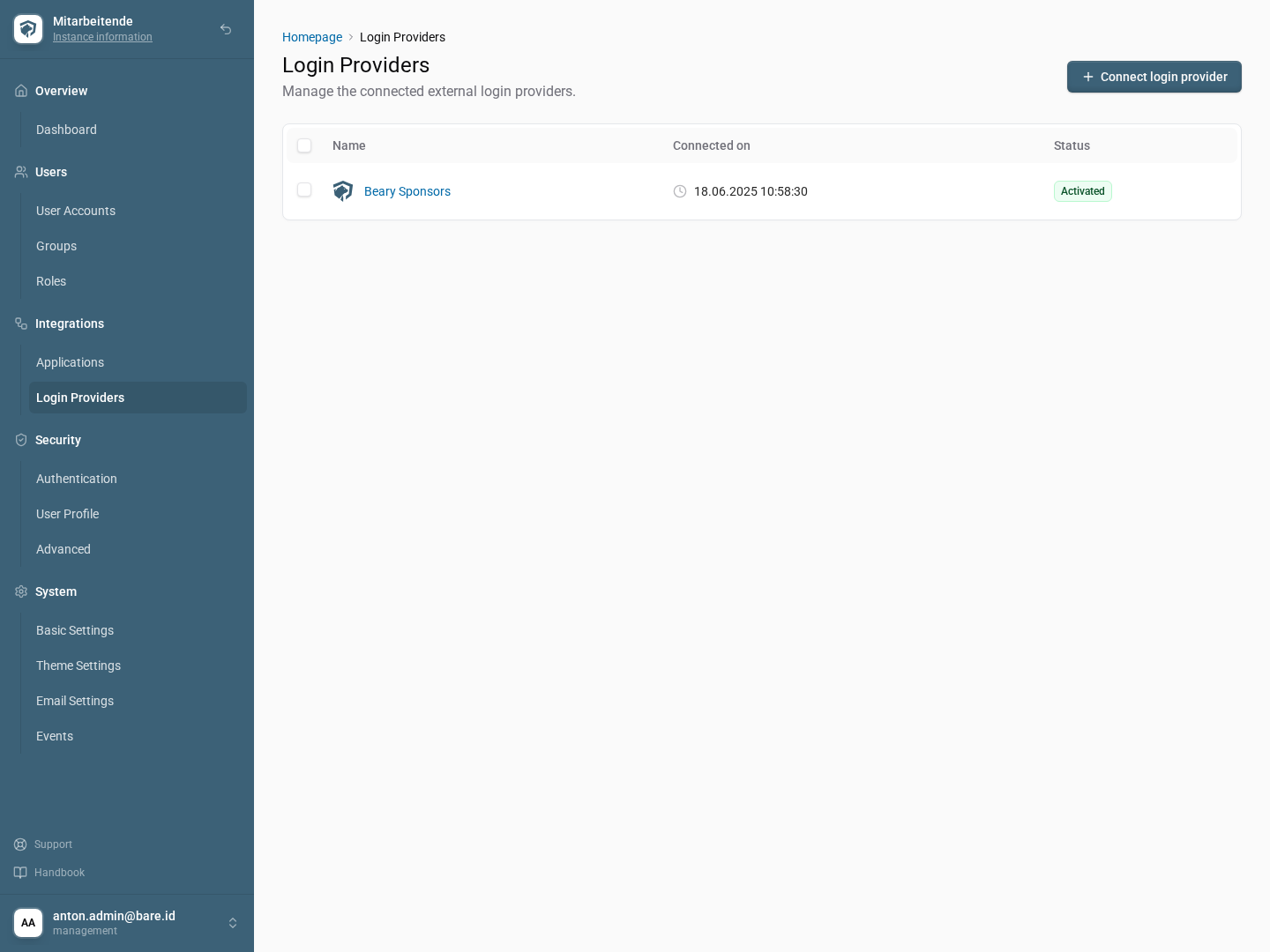
Click on ‘Login Providers’ in the navigation on the left.
Click on the ‘Connect login provider’ button.
- Select the corresponding preconfigured login provider in the gallery.
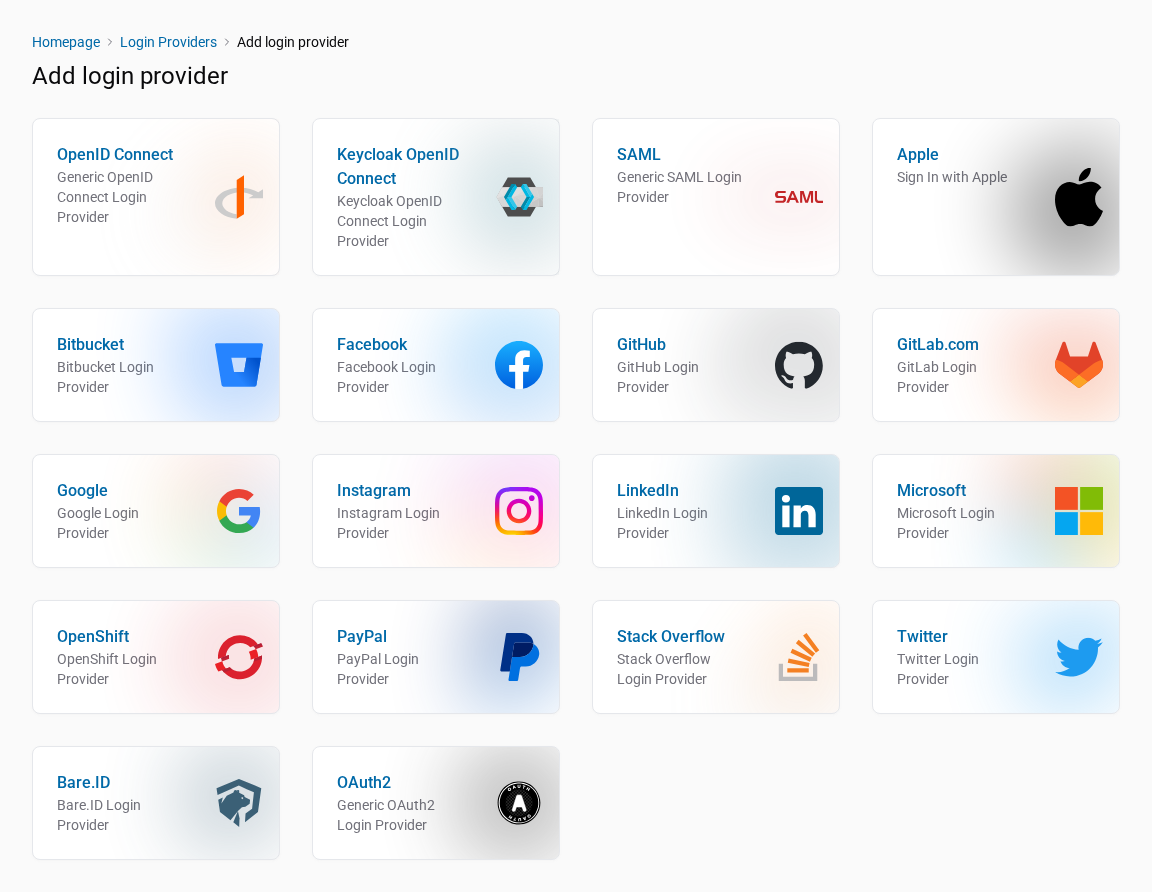
- There, select the entry for LDAP.

On the configuration page, the following are configured in particular:
- Connection URL: the directory’s connection URL
(e.g.
ldaps://dc.example.local:636) as well as the bind DN and password of the service account. - Edit mode: Read Only, Writeable or Unsynced (see above).
- Bind DN: the users DN / base DN under which users are searched.
- Attribute mappings: mapping of directory attributes (e.g. username, email) to the Bare.ID user fields, plus group mappings if applicable.
Note: Attribute mapping only becomes available after the login-provider configuration has been saved for the first time. Create and save the connection first; the attribute and group mappings can then be edited.
These values depend on your AD structure; Bare.ID assists with defining them if needed.
Acceptance criteria
The integration is considered successfully completed when:
- the agent is permanently online and the diagnostic functions report no errors,
- the connection remains stable over an extended period, and
- the LDAP/LDAPS integration has subsequently been tested successfully (test login of a directory user).
Common failure patterns and causes
- Agent cannot establish a connection: In most cases, outbound HTTPS traffic is blocked or the required target systems are unreachable.
- Unstable connections: Often indicate that the required UDP port range is restricted or impaired by NAT/firewall rules.
- Connectivity check fails: Systematically verify that DNS works correctly, all target systems are reachable, and the provided configuration file was imported correctly.
- LDAPS connection fails: Frequently caused by a hostname/SAN mismatch, an expired certificate, or a missing CA in the truststore.
For further diagnostic options, consult the official documentation as well as the log data provided by the agent.
Roles and responsibilities
- On the customer side lies the responsibility for providing and operating the gateway VM, correctly implementing the network and firewall rules, installing and operating the XplicitTrust agent, providing the service account and LDAPS certificates, and configuring the directory integration in the Bare.ID dashboard.
- Bare.ID provides the required VPN configuration file, supports commissioning and validation of the connection, and adds the provided CA/server certificate to the instance’s truststore.
 English